How to Create a Group
Create a group to stay connected with your Mahjong circle, share updates, and plan sessions together.
Steps to Create a Group
1. Go to Groups & Chats
Open the Groups & Chats tab from the bottom navigation.
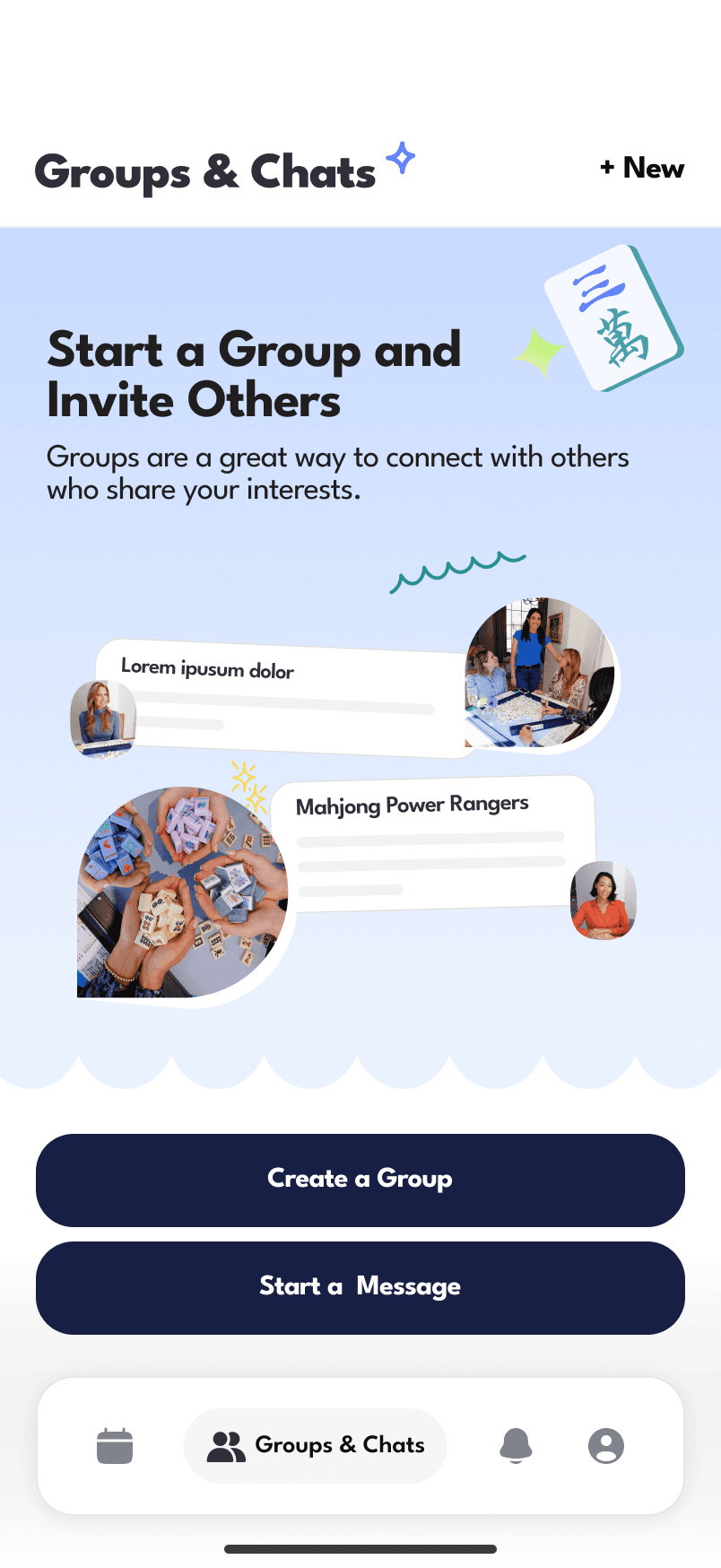
2. Tap “Create a Group”
On the Groups & Chats screen, tap Create a Group.
3. Add Group Details
You’ll be asked to provide basic information:
Group Name
Give your group a clear and recognizable name.Group Image (optional)
Upload or choose an image to represent your group.About / Description (optional)
Share details about your group. For example:Beginner or advanced players
Play style or rules
Frequency of meetups
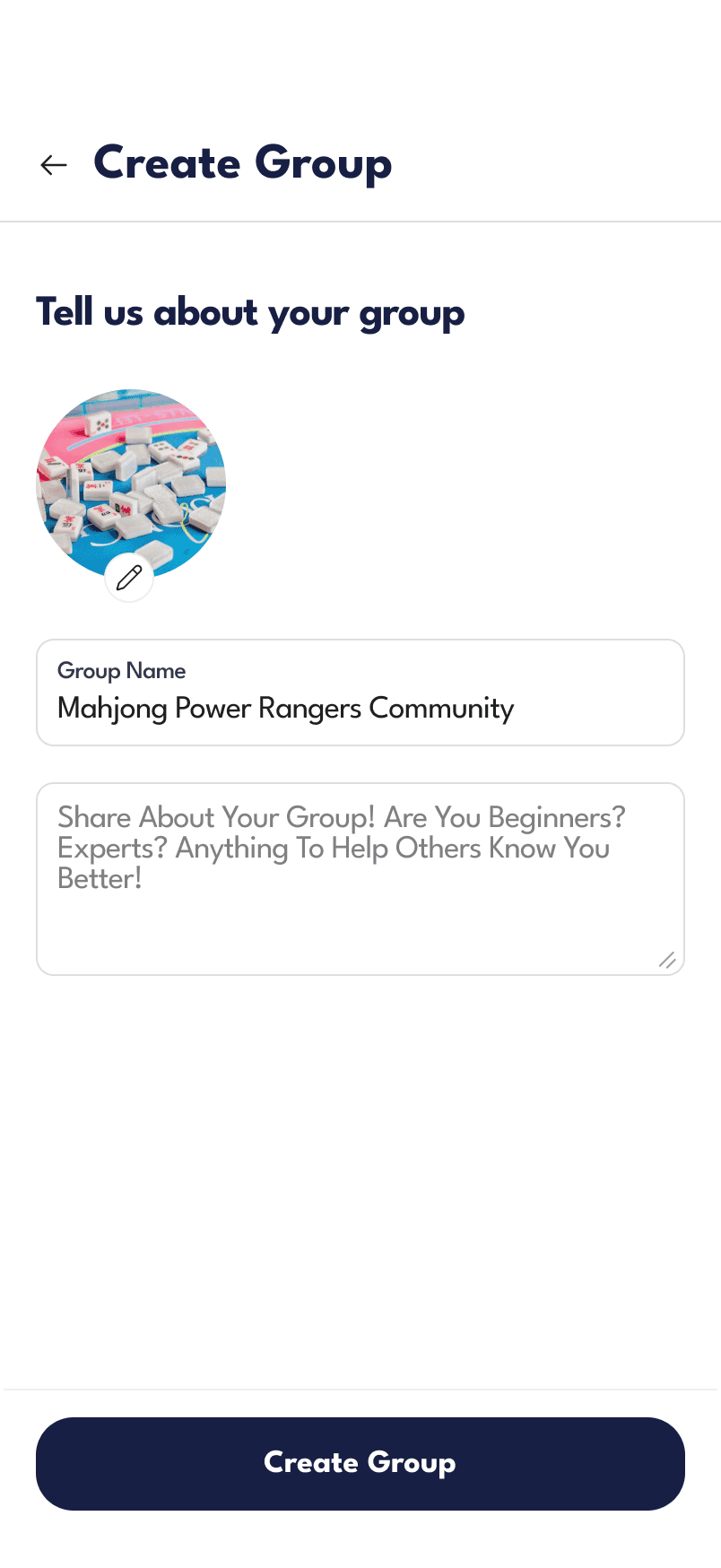
4. Create the Group
Tap Create Group to finish setup.
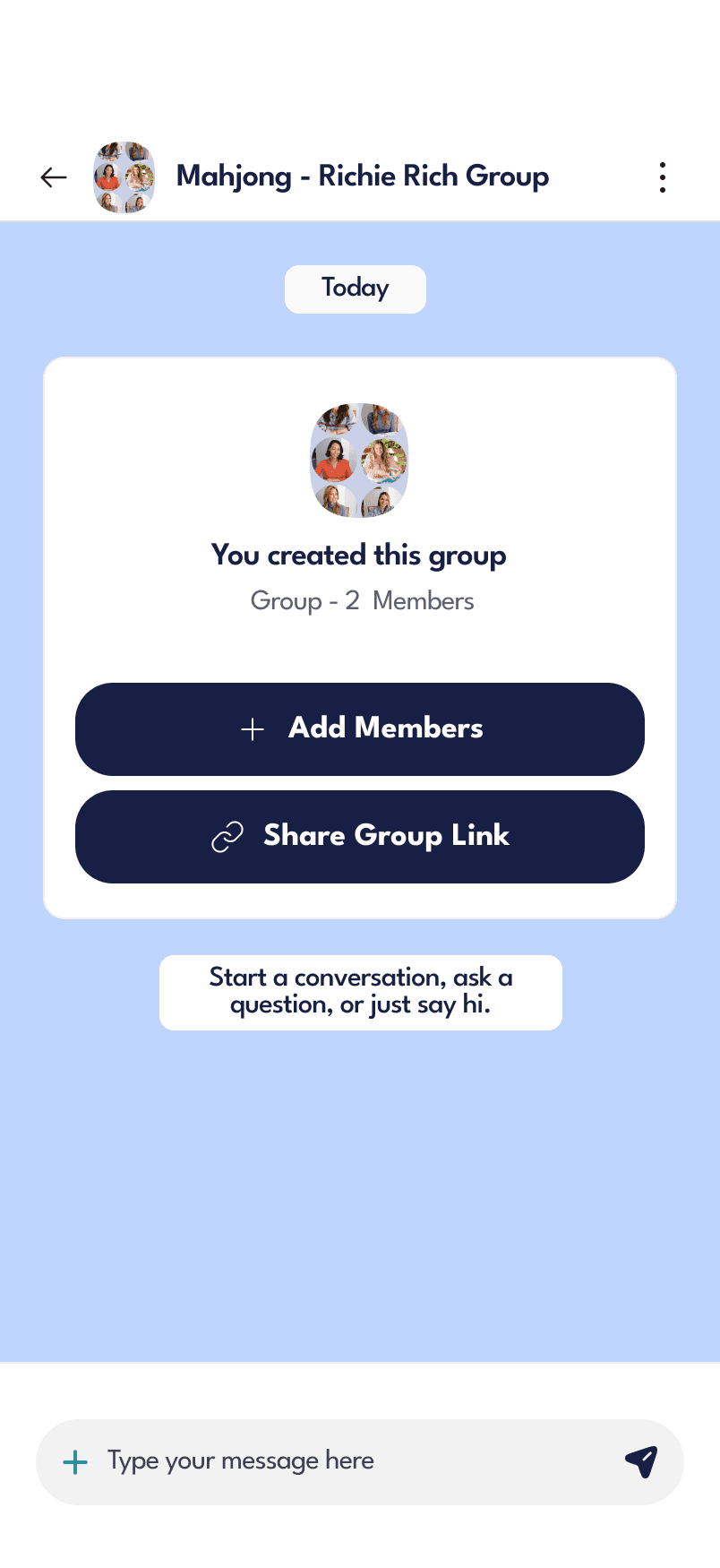
After Creating Your Group
Once your group is created, you can:
Add Members
Invite players directly by tapping Add Members
Share Group Link
Send an invite link using Share Group Link
Start Conversations
Use the chat to:
Coordinate sessions
Share updates
Ask questions
Tips
Use a clear group name so members can easily recognize it
Add a short description to set expectations for new members
Share the group link to quickly grow your community
Common Questions
Can I edit group details later?
Yes, you can update the group name, image, and description anytime.
Do people need an invite to join?
They can join via invite link or be added directly by a member.
How to Manage a Group
Manage your group to keep conversations organized, control members, and assign co-admins.
Access Group Settings
1. Open Your Group
Go to Groups & Chats and select your group.
2. Open Group Details
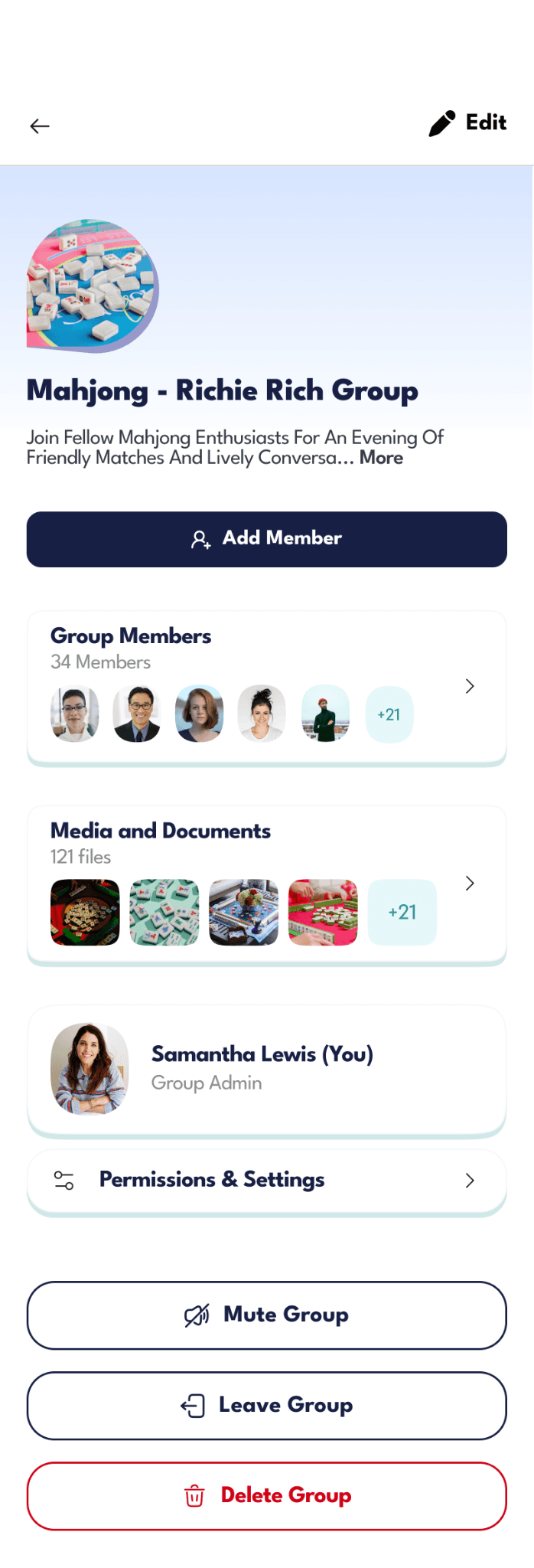
Tap on the group header or info section to view group details and settings.
Add Members
Tap Add Member to invite new players to your group.
You can search for users or share a group link.
View and Manage Members
1. Open Group Members
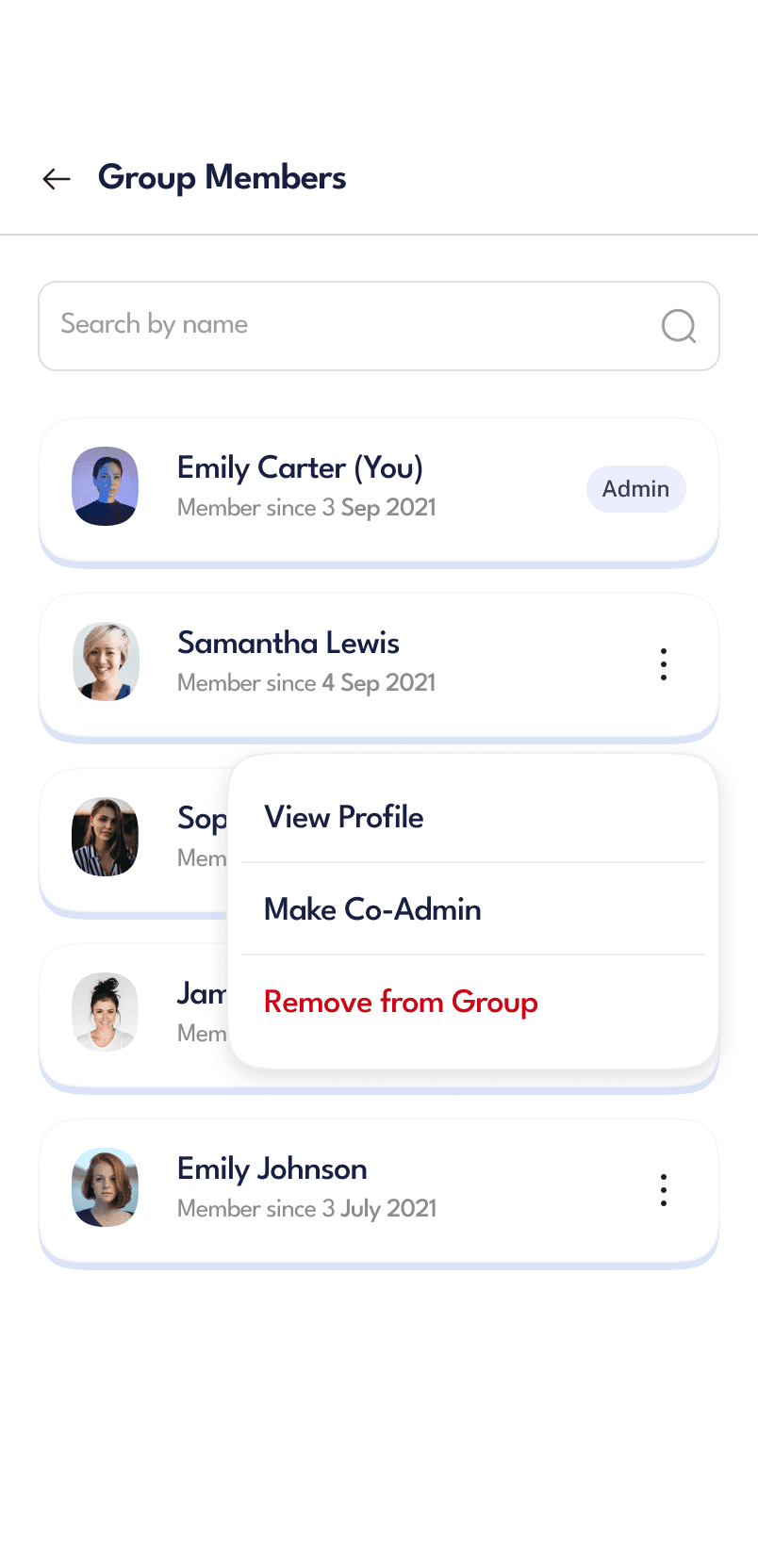
Tap Group Members to see the full list.
2. Manage Individual Members
Tap the menu (•••) next to a member to:
View Profile
Make Co-Admin
Remove from Group
Assign Co-Admins
The group creator is the main admin. You can assign others as co-admins to help manage the group.
To make someone a co-admin:
Open Group Members
Tap the menu next to a member
Select Make Co-Admin
Co-admins can help manage members and group settings.
Edit Group Details
Tap Edit to update:
Group name
Group image
Description
Manage Permissions
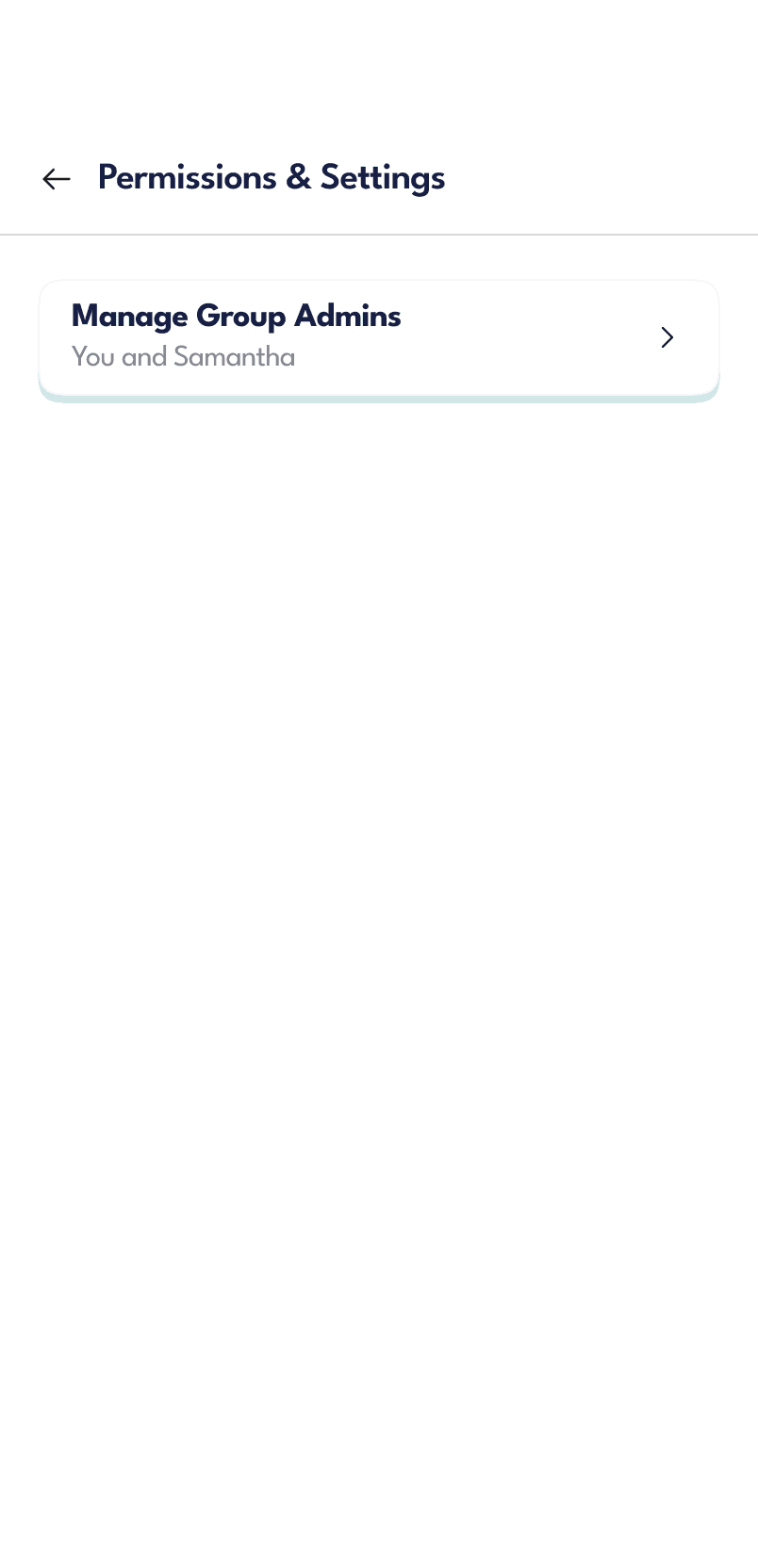
Go to Permissions & Settings to manage admin roles.
Here you can:
View current admins and co-admins
Add or remove co-admins
Mute Group
Tap Mute Group to stop receiving notifications from the group.
Leave Group
Tap Leave Group if you no longer want to be part of the group.
Note:
If you are the main admin, assign a co-admin before leaving.
Delete Group
Only the main admin can delete the group.
Tap Delete Group to:
Remove all members
Delete chats and shared content
This action cannot be undone.
Tips
Assign co-admins for larger groups
Keep a trusted co-admin before leaving the group
Regularly review members to keep the group relevant
Common Questions
Can I have multiple admins?
You will always have one main admin, but you can assign multiple co-admins.
Can co-admins remove members?
Yes, co-admins can help manage members.
Who can delete the group?
Only the main admin (group creator) can delete the group.